

Let's do it together!
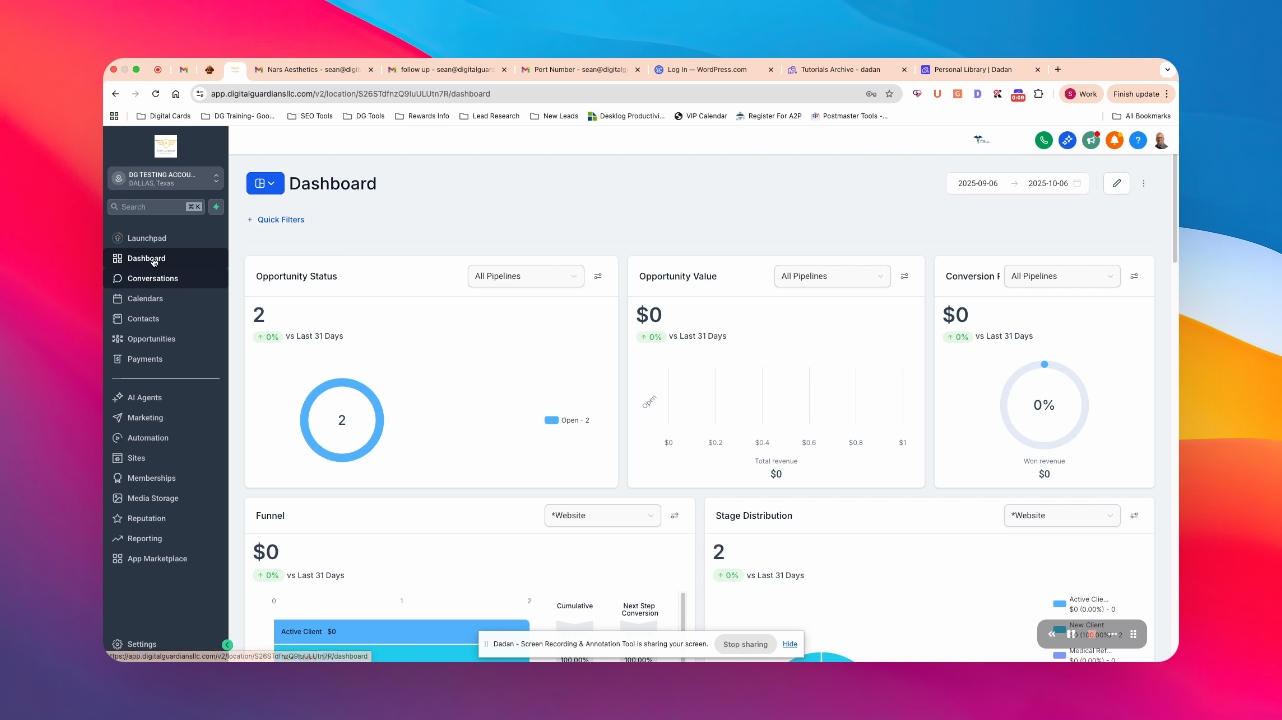
Step 1: Open your Dashboard
Navigate to your main dashboard to begin.
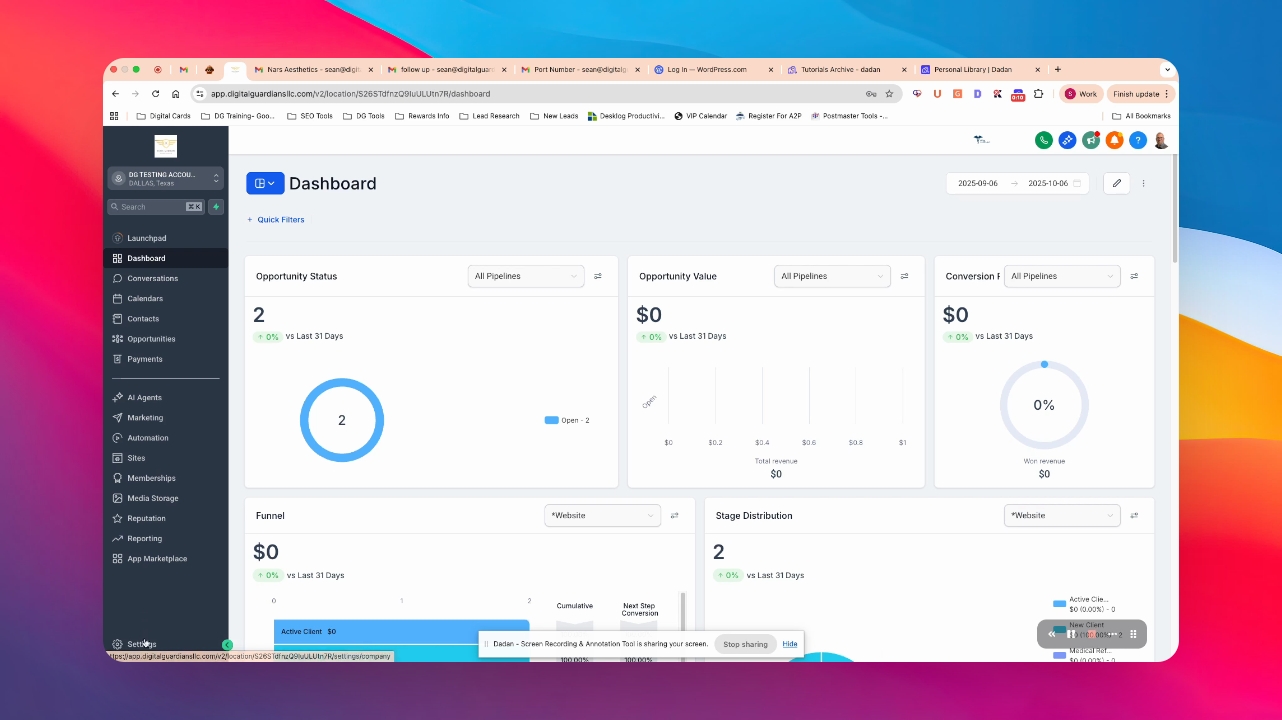
Step 2: Go to Settings
Select Settings from the dashboard menu.
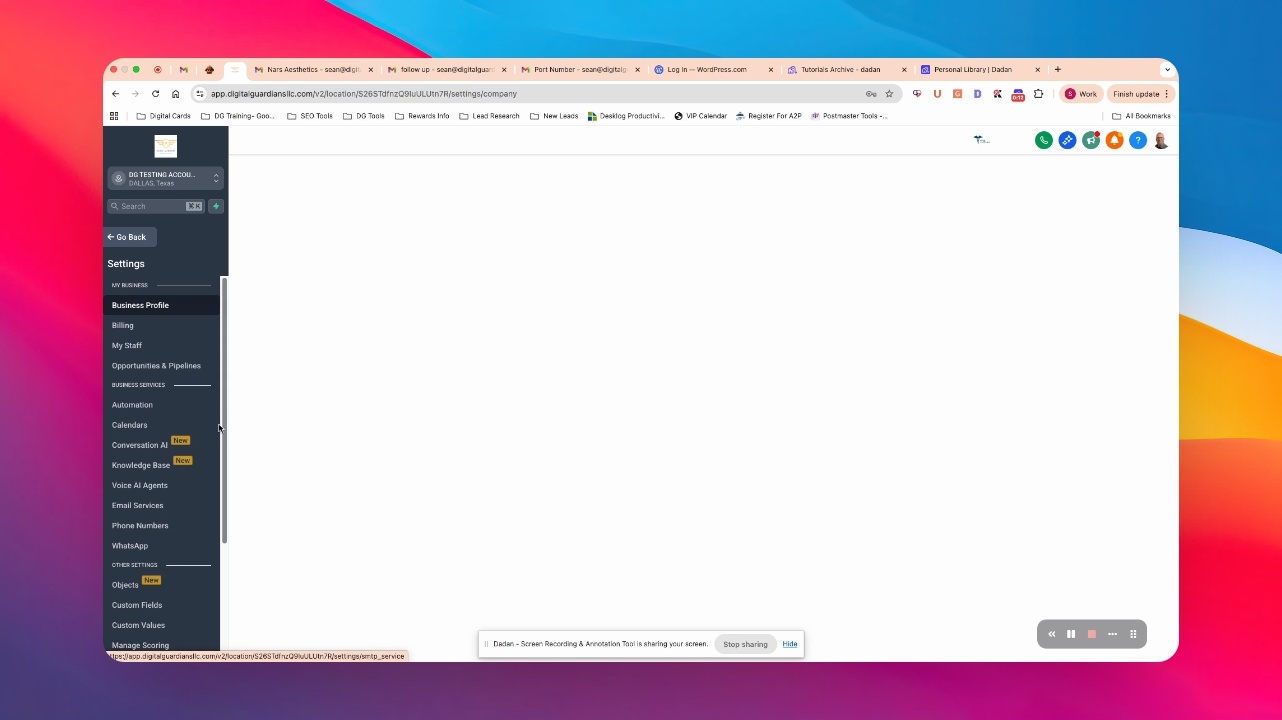
Step 3: Navigate to Billing
Click on Billing to access wallet options.
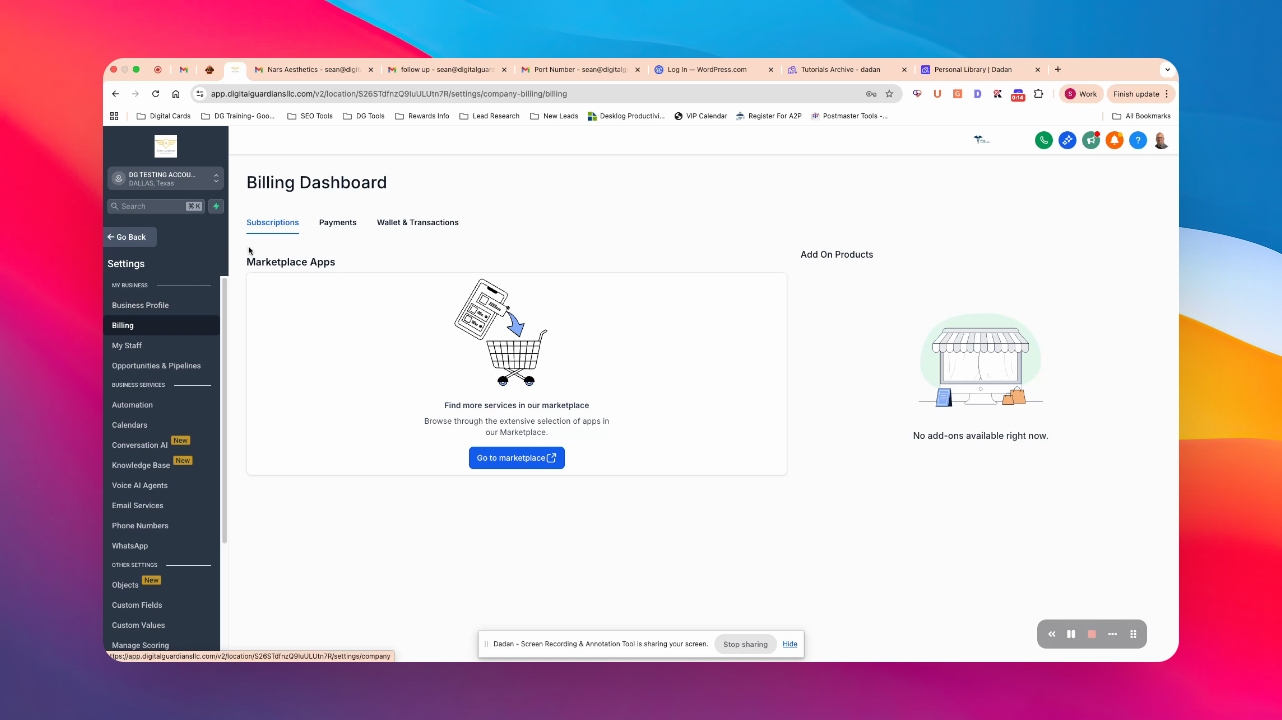
Step 4: Select Wallet
Choose Wallet from the billing options.
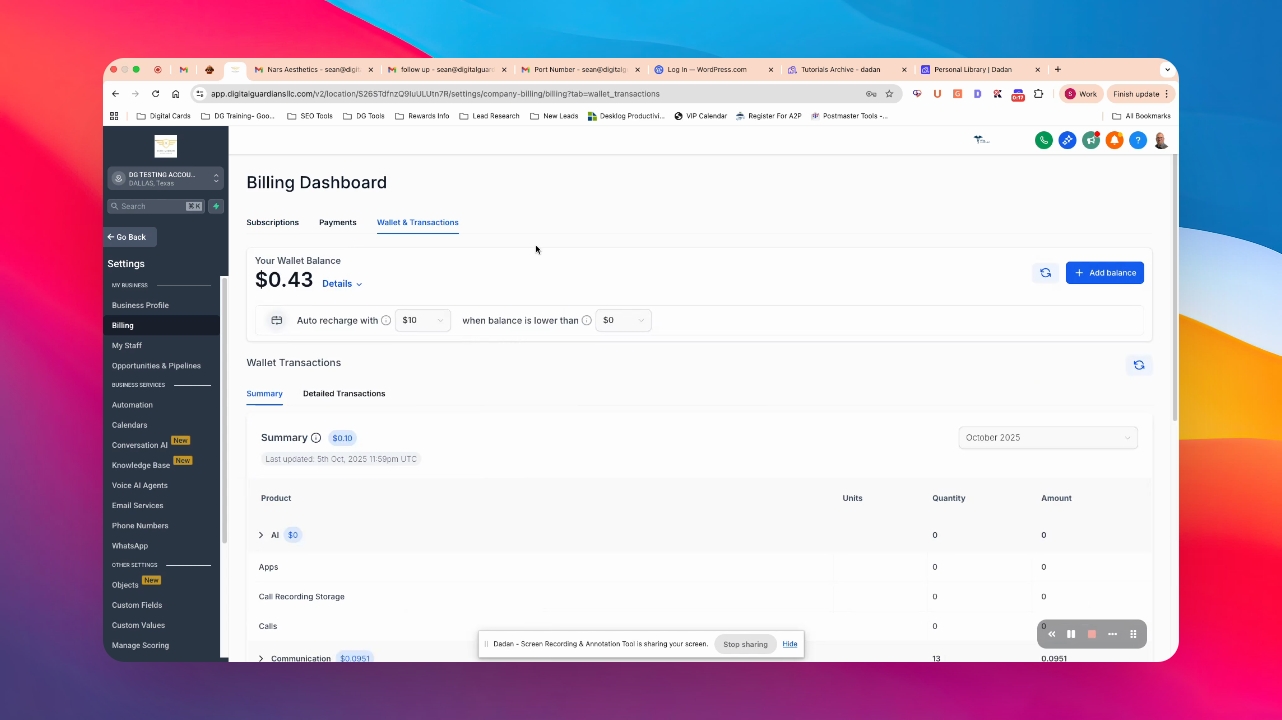
Step 5: View your Transactions
Click to see all of your transactions within the system.
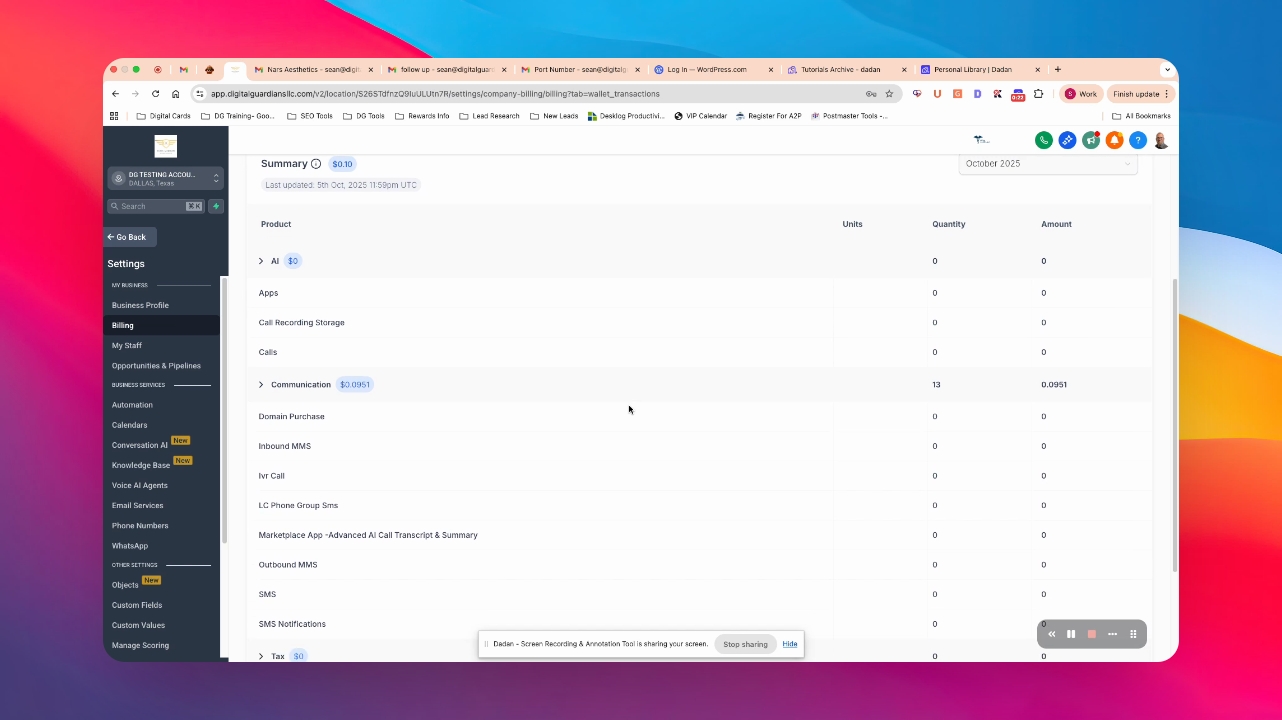
Step 6: Understand Usage Billing
Review details on AI usage, SMS, multimedia, and other services.
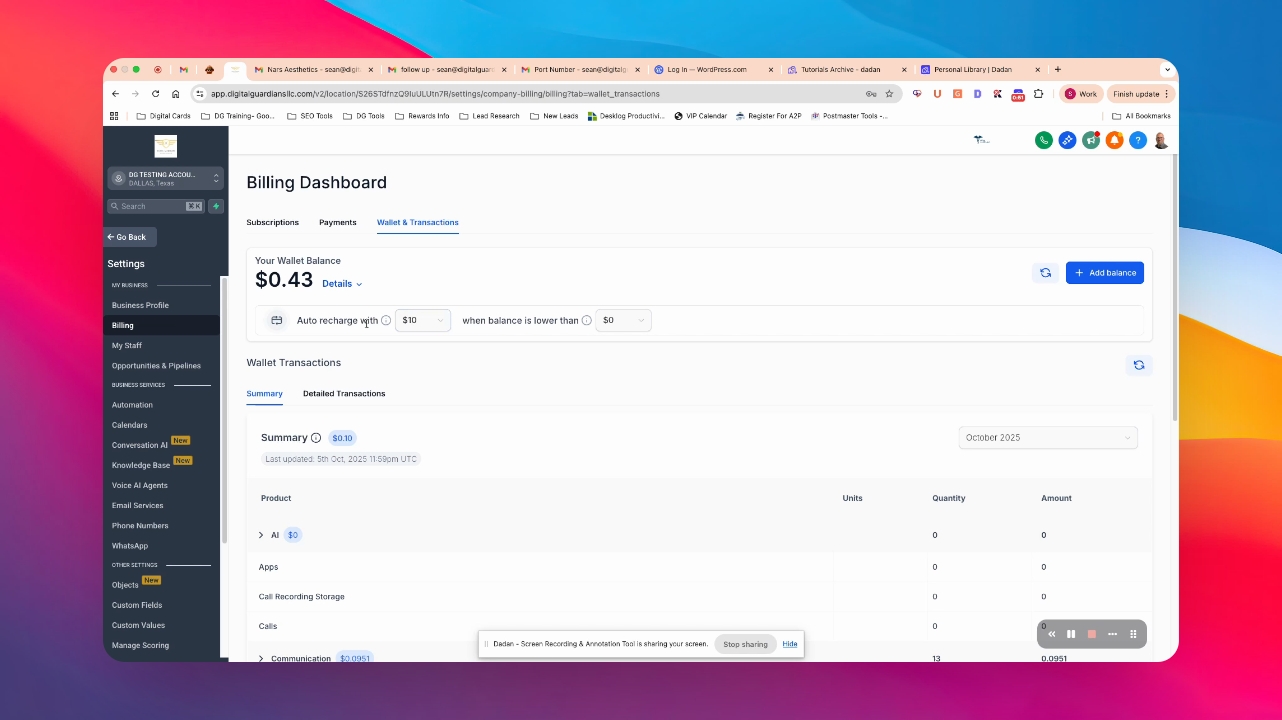
Step 7: Manage Auto Recharge
Know that your wallet will auto recharge to 10 when it hits 0.
Consider adjusting your limit after the first month.
Troubleshooting
Cannot find wallet options
Ensure you are in the correct account and follow the steps accurately.
Transactions not displaying
Refresh the page or check your internet connection.
FAQ
What is auto recharge?
It automatically adds 10 to your wallet when it hits 0.
How is usage billed?
You pay based on your usage of services like AI, SMS, and multimedia.
