

Step by step guide
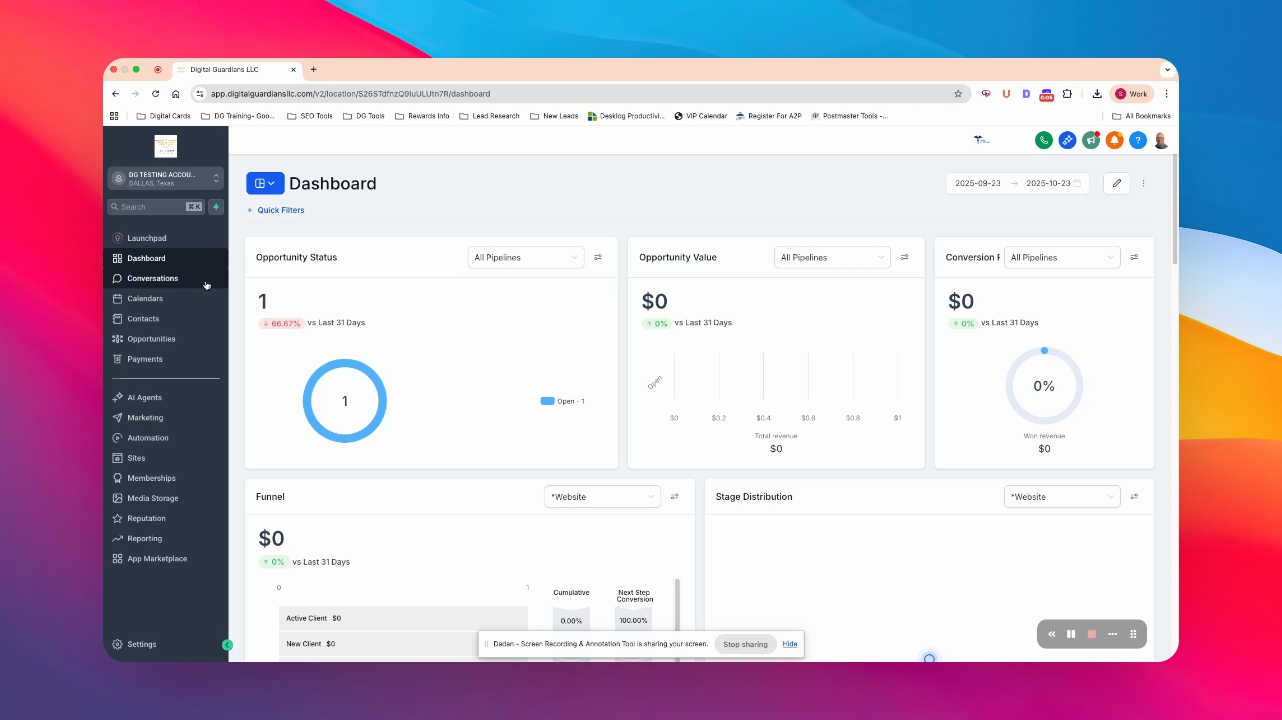
Step 1: Go to Conversations
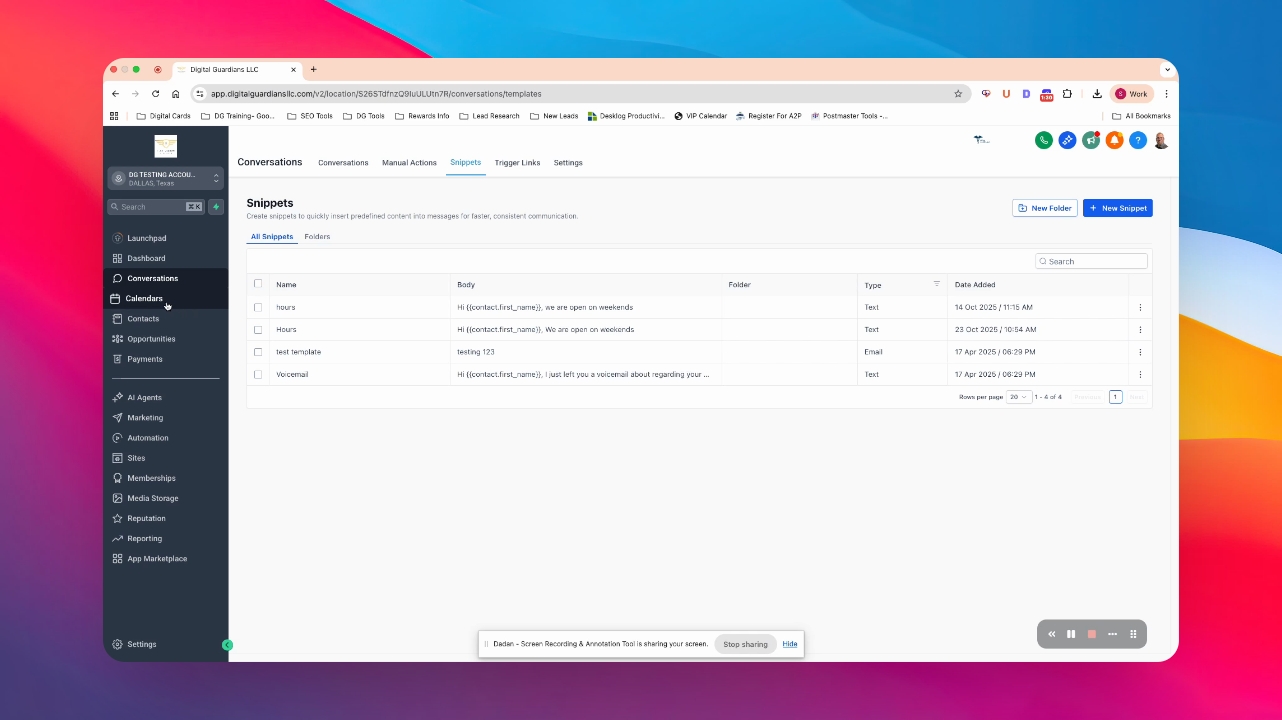
You are now in the Conversations section.
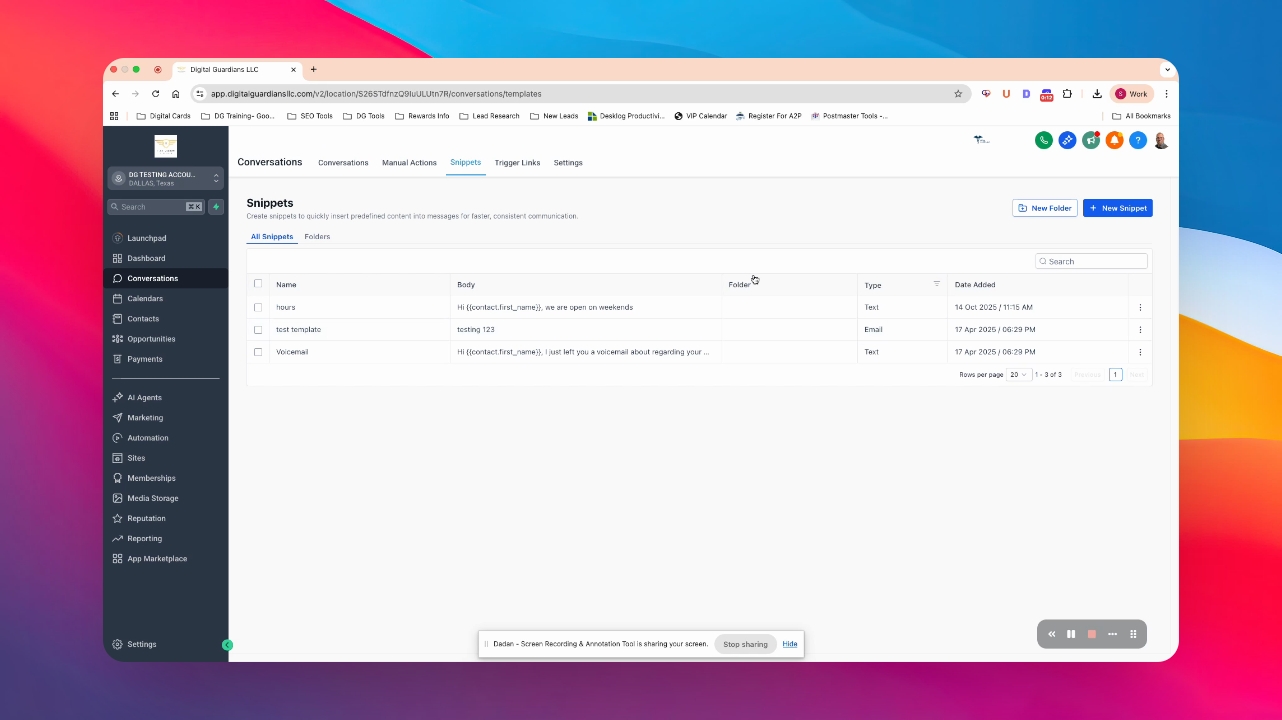
Step 2: Navigate to Snippets
The Snippets section opens.
Step 3: Create a New Snippet
Click new to start creating a Snippet.
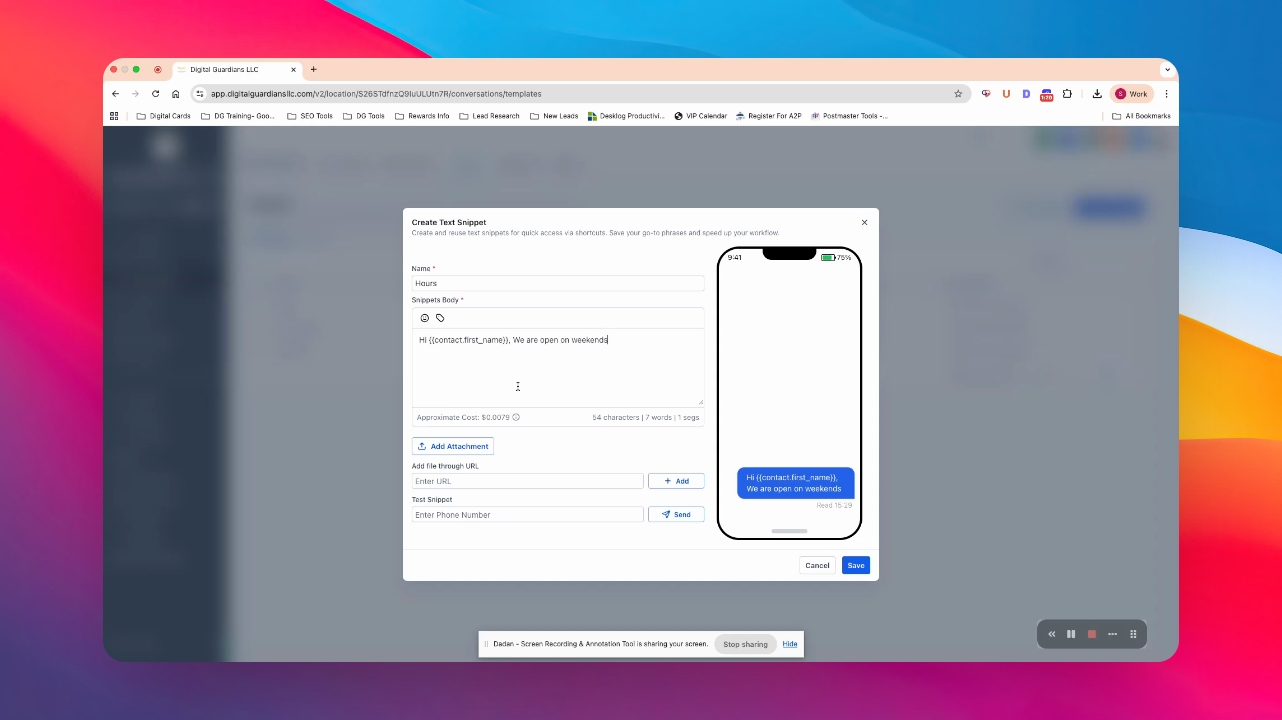
Step 4: Name Your Snippet
Enter a name for your Snippet, such as hours.
Step 5: Customize Your Snippet
Type a message, including the customer's name.
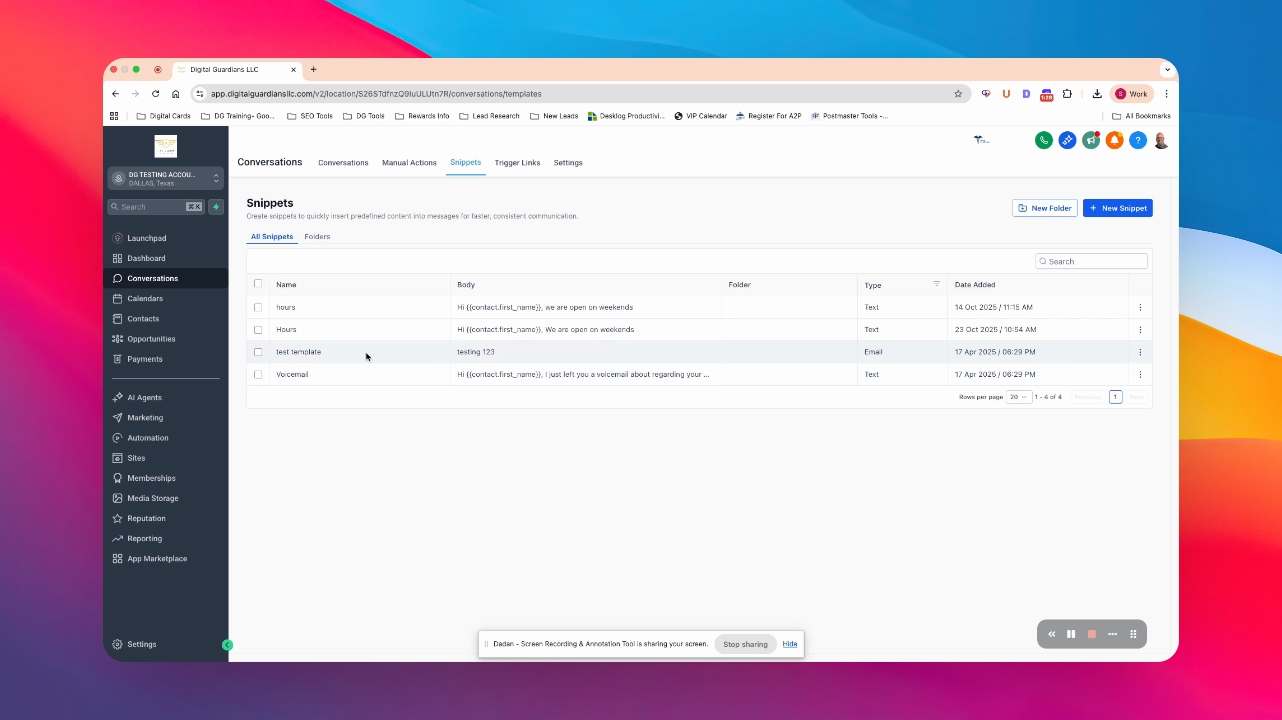
Step 6: Save Your Snippet
Press save to store your Snippet.
Your Snippet is now saved and ready to use.
Step 7: Use Your Snippet
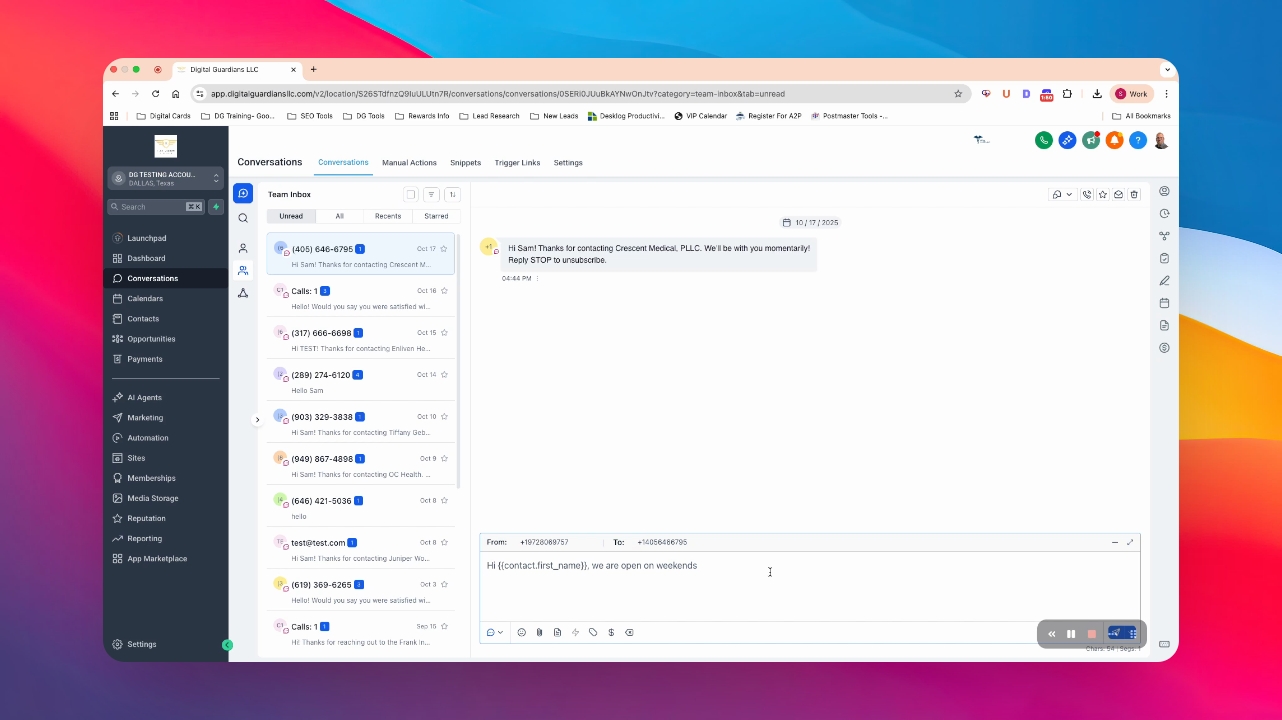
Go to an individual conversation and click the Snippets option.
Step 8: Select Your Snippet
Click on your Snippet, such as hours, to insert it.
Your Snippet is now ready to send.
